
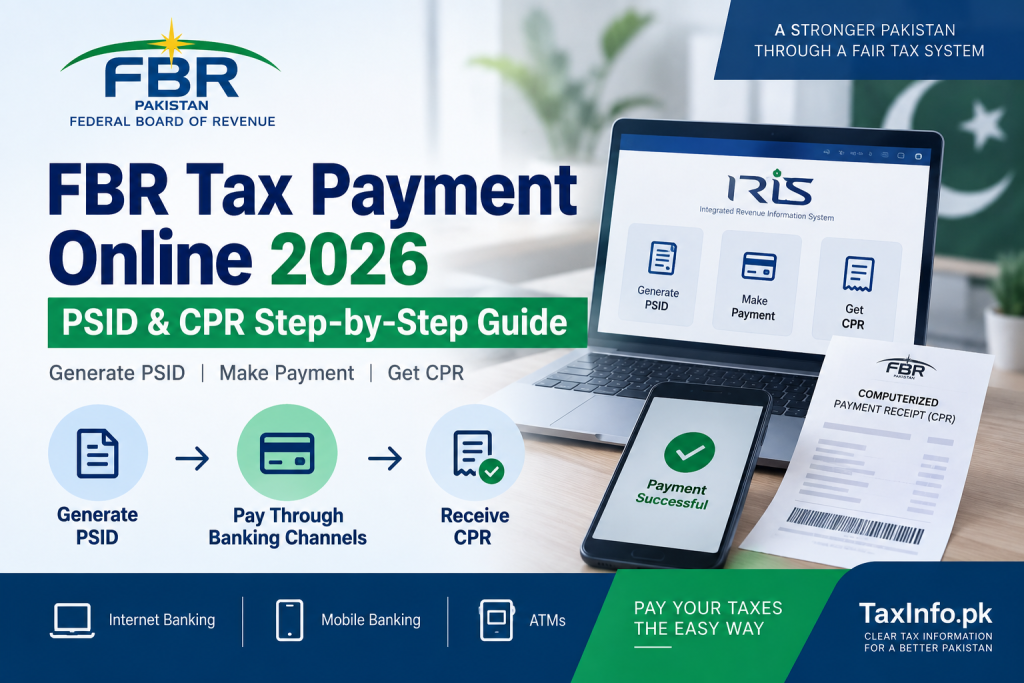
Paying tax to the Federal Board of Revenue (FBR) has become easier through the online payment system. Taxpayers can generate a Payment Slip ID (PSID), pay the amount through supported banking channels and receive a Computerized Payment Receipt (CPR) after successful payment.
FBR’s ePayment 2.0 system is integrated with IRIS 2.0 and covers payments relating to Income Tax, Sales Tax, Federal Excise Duty and Withholding Taxes. The system allows both registered and unregistered taxpayers to generate a PSID and complete payments through supported channels.
In this guide, you will learn how to make FBR tax payment online, what PSID and CPR mean, how to verify a PSID or CPR, what happens after payment, and what to do when your payment has been deducted but the CPR is not showing.
Table of Contents
What Is a PSID in FBR?
PSID stands for Payment Slip ID.
It is a unique payment reference generated when a taxpayer creates a tax payment through FBR’s payment system.
In simple words:
PSID = the reference number used to make your FBR tax payment.
A PSID is created before payment. It identifies the particular tax payment you intend to make.
Before paying against a PSID, carefully verify:
- CNIC/NTN or taxpayer details;
- tax type;
- tax year or relevant period;
- payment nature, where applicable; and
- amount payable.
A generated PSID by itself is not proof that tax has been paid.
What Does PSID Stand For?
One of the most common questions taxpayers ask is what PSID stands for in FBR.
PSID = Payment Slip ID.
Think of it as the unique reference connecting your intended tax payment with FBR’s payment system.
You normally use this reference when making the payment through a supported bank, mobile banking application, internet banking or ATM.
What Is a CPR in FBR?
CPR stands for Computerized Payment Receipt.
Unlike a PSID, which exists before payment, a CPR is generated after the tax payment has been successfully completed.
In simple words:
CPR = official confirmation of your completed FBR tax payment.
The basic sequence is:
Generate PSID → Pay Tax → Receive CPR
FBR’s ePayment 2.0 system provides CPR issuance after successful payment and makes payment records accessible for future compliance purposes.
You should keep your CPR because it can serve as evidence of the tax payment.
If you specifically need to retrieve or save a receipt, follow our Download FBR CPR Online – Step-by-Step Guide.
What Does CPR Stand For in FBR?
CPR = Computerized Payment Receipt.
The distinction between PSID and CPR is important:
PSID tells the system what you intend to pay.
CPR confirms that the payment has been completed.
Therefore, simply generating a PSID does not mean the corresponding tax has been paid.
How to Generate FBR PSID Online
FBR’s current payment facility is available through IRIS 2.0.
You can access the official FBR e-Payment facility to begin creating the relevant payment.
Depending on the tax type, the system may ask for information such as:
- CNIC/NTN or registration details;
- tax type;
- relevant tax year or period;
- nature of payment; and
- amount payable.
For income-tax payments, FBR’s official guidance explains that a payment slip is created after selecting the relevant Tax Year and entering the tax amount due.
Before generating the PSID, review every field carefully.
Details to Check Before Generating a PSID
A mistake at the payment-creation stage can cause problems later.
Check the following:
Taxpayer Details
Make sure the CNIC, NTN and taxpayer information relate to the correct person.
Tax Type
Confirm whether you are paying Income Tax, Sales Tax, Withholding Tax or another applicable liability.
Tax Year or Period
Selecting the wrong year can result in the payment being recorded against a period you did not intend.
Payment Amount
Check the amount carefully before proceeding.
Nature of Payment
Where the system asks for a payment nature or category, select the option applicable to the liability being paid.
Once the information is correct, proceed with PSID generation.
How to Pay FBR Tax Online Using PSID
After generating the PSID, you can use it to complete the tax payment.
FBR’s electronic payment system supports digital payment through banking channels such as internet banking, mobile banking and ATMs.
The exact wording inside a banking application can vary, but the general process is:
Step 1: Open Your Banking Channel
Open your bank’s mobile application or internet banking service, or use an ATM.
Step 2: Find the FBR/Government Payment Option
Look for the tax or government payment section and select FBR where applicable.
Step 3: Enter the PSID
Enter the PSID generated through FBR.
Step 4: Verify the Payment Details
The banking system should retrieve the relevant payment information.
Carefully check:
- taxpayer details;
- PSID;
- payable amount; and
- other displayed information.
Step 5: Confirm Payment
If everything is correct, complete the transaction.
Do not confirm a payment where the information displayed by your bank does not match the FBR payment you intended to make.
What Happens After PSID Payment?
After successful payment, a Computerized Payment Receipt (CPR) is generated.
FBR’s ePayment 2.0 system provides CPR issuance through email and SMS after completion of the payment workflow.
FBR’s general income-tax guidance also states that a paid CPR may be reflected in IRIS within 24 hours of depositing the payment.
Therefore, if your bank account has been debited but you cannot immediately see the CPR in a particular IRIS screen, do not make the same payment again without checking its status first.
How to Verify PSID Online
FBR currently provides an online verification facility through IRIS.
Open the official FBR IRIS 2.0 portal.
Under Online Verifications, FBR currently lists:
Payment Slip ID (PSID) / Computerized Payment Receipt (CPR) Verification
Use the verification facility to check the payment record/status associated with your PSID or CPR.
This is particularly useful when:
- you have paid a PSID but are unsure whether FBR received the payment;
- the amount has been debited from your bank account;
- CPR is not immediately visible;
- you need to confirm an old payment record; or
- you want to avoid accidentally paying the same PSID twice.
Always use the official FBR portal for verification.
How to Verify CPR Online
FBR also provides a dedicated Computerized Payment Receipt (CPR) option under Online Verifications on the IRIS portal.
Go to the official FBR IRIS portal and locate the CPR verification facility.
Enter the information requested by the system and check the resulting payment record carefully.
Online CPR verification is useful when you need to confirm that a tax payment is recorded with FBR rather than relying only on a bank transaction message.
For detailed instructions on locating, verifying and saving a receipt, read our FBR CPR Download and Verification Guide.
PSID to CPR — How Does It Work?
Taxpayers often search for ways to “convert PSID to CPR.”
Technically, you do not manually convert one document into another.
The process is:
1. Generate PSID
↓
2. Pay the amount against that PSID
↓
3. FBR confirms the successful payment
↓
4. CPR is generated
Therefore:
PSID + Successful Payment = CPR
If a PSID has not been paid successfully, simply having its number does not create proof of payment.
Can You Generate CPR from PSID Without Payment?
No successful tax-payment receipt should be expected merely because a PSID has been generated.
A PSID is a payment reference. The CPR represents the completed payment.
If you have already paid the PSID and need to retrieve the corresponding receipt, use FBR’s verification/payment facilities or follow our guide to downloading FBR CPR online.
PSID vs CPR — What Is the Difference?
| PSID | CPR |
|---|---|
| Payment Slip ID | Computerized Payment Receipt |
| Generated before payment | Generated after successful payment |
| Used as payment reference | Confirms completed payment |
| Helps identify the intended tax payment | Serves as payment evidence/record |
| Entered when making payment | Retained after payment |
The easiest way to remember the difference is:
PSID = Pay the tax
CPR = Proof of payment
CPR Verification vs CPR Download
These two actions have related but slightly different purposes.
CPR Verification
Verification helps you confirm the FBR payment record and status through the official online verification facility.
CPR Download
Downloading or saving the CPR gives you a copy of the receipt for your own records.
If your main purpose is retrieving the receipt itself, use our dedicated Download FBR CPR Online 2026 guide rather than confusing verification with payment creation.
Why Is CPR Important?
The CPR provides a record that tax was paid to FBR.
It can be useful when:
- reconciling tax payments;
- completing tax compliance procedures;
- checking payments appearing in IRIS;
- maintaining records for an Income Tax Return;
- attaching/selecting available CPRs where an IRIS process requires payment information; or
- resolving a discrepancy concerning a payment.
Do not rely only on a bank SMS or transaction notification.
Keep the FBR payment record as well.
PSID Paid but CPR Not Showing — What Should You Do?
This is an important situation because paying the same liability twice can create another problem.
If your PSID has been paid but CPR is not showing:
1. Check Your Bank Transaction
Confirm whether the payment amount was actually debited.
2. Verify the PSID
Use FBR’s PSID/CPR Verification facility on the official IRIS portal.
3. Check for the CPR
Use the CPR verification/payment records available through FBR.
4. Allow for Processing
FBR describes ePayment 2.0 CPR generation as real-time after successful completion of the payment workflow, while its general income-tax guidance states that CPR can be reflected in IRIS within 24 hours after depositing payment.
5. Do Not Immediately Pay Again
If the bank has already debited the amount, verify the first payment before creating or paying another liability for the same amount.
6. Seek FBR Assistance if Necessary
If the payment remains unresolved after checking the official facilities, contact FBR through its official taxpayer-support channels.
How to Find an Old CPR in FBR IRIS
If you need an older payment record, start with FBR’s current IRIS/payment facilities.
FBR’s ePayment system includes PSID search functionality for retrieving and confirming payment records.
The IRIS portal also provides public CPR and PSID/CPR verification options.
If your purpose is specifically to locate and save an old receipt, see our complete FBR CPR download guide.
Keeping your own PDF copies of important CPRs can make future reconciliation easier.
Common FBR Tax Payment Mistakes
Selecting the Wrong Tax Year
Always check the relevant Tax Year or tax period before generating the PSID.
Entering the Wrong Amount
Verify the payable amount before confirming the transaction.
Choosing the Wrong Tax Type
Make sure the payment relates to the correct liability.
Assuming PSID Means Payment Is Complete
A generated PSID is not the same as a CPR.
Paying Twice When CPR Is Delayed
If money has already been debited, verify the PSID/payment status before making another payment.
Not Saving the CPR
Keep a copy of important CPRs with your tax records.
Using an Unofficial Verification Website
Use FBR’s official IRIS portal for PSID and CPR verification.
Can You Pay FBR Tax Through Mobile Banking?
Yes.
FBR’s ePayment system supports electronic payments through banking channels including mobile banking, internet banking and ATMs.
After entering the PSID in the appropriate FBR/government-payment facility, verify the retrieved payment details before confirming the transaction.
Can an Unregistered Person Generate a PSID?
Yes.
FBR states that ePayment 2.0 facilitates PSID generation for both registered and unregistered taxpayers.
The information required depends on the type and nature of the payment being created.
How Long Does CPR Take to Appear in IRIS?
FBR describes CPR generation under ePayment 2.0 as occurring in real time following successful completion of the payment workflow.
FBR’s general income-tax guidance separately states that CPR is reflected in IRIS within 24 hours of depositing the payment.
If payment has been successfully debited but the CPR is not immediately visible in the screen you are checking, verify the payment before trying again.
Frequently Asked Questions
What is PSID in FBR?
PSID stands for Payment Slip ID. It is the unique payment reference generated for making an FBR tax payment.
What does PSID stand for?
PSID means Payment Slip ID.
What is CPR in FBR?
CPR stands for Computerized Payment Receipt. It is generated after successful tax payment and serves as confirmation of the payment.
What does CPR stand for in FBR?
CPR means Computerized Payment Receipt.
How do I get CPR from PSID?
Pay the tax successfully against the PSID. Once FBR confirms the payment, a CPR is generated. You do not manually convert an unpaid PSID into a CPR.
How can I verify PSID online?
Use the PSID/CPR Verification option available under Online Verifications on the official FBR IRIS portal.
How can I verify FBR CPR online?
The official IRIS portal currently provides a dedicated Computerized Payment Receipt (CPR) verification option as well as PSID/CPR Verification.
Can I download CPR online?
Yes. Once the relevant payment record is available, you can retain the CPR for your records. Follow our Download FBR CPR Online guide for detailed instructions.
Is PSID proof of tax payment?
No. PSID is the payment reference. CPR is generated after successful payment and serves as the payment confirmation.
Can I pay FBR tax online?
Yes. FBR supports electronic payment through supported banking channels, including mobile banking, internet banking and ATMs.
What if my PSID is paid but CPR is not showing?
Confirm the bank debit, use FBR’s PSID/CPR verification facility and allow for processing before attempting another payment.
Can I generate PSID without logging into IRIS?
FBR currently provides an online payment facility through its IRIS payment system. The information and authentication required can depend on the payment being created.
Should I keep my CPR after filing my return?
Yes. Keep the CPR with your tax records because it provides evidence of the payment and can help with future reconciliation or compliance.
Final Words
FBR’s electronic payment system makes it possible to generate a PSID, pay tax through supported banking channels and obtain a CPR after successful payment.
Remember the basic sequence:
Generate PSID → Verify Details → Pay Tax → Verify Payment → Obtain CPR → Keep CPR for Your Records
The most important precaution is to check the taxpayer details, tax type, tax year or period and amount before confirming payment.
If a payment has already been debited but CPR is not immediately showing, verify the PSID/payment through the official FBR IRIS portal before paying again.
For detailed instructions on retrieving the receipt after payment, continue with our Download FBR CPR Online 2026 – Step-by-Step Guide.
If you are proceeding to annual tax compliance after making the payment, read our How to File Income Tax Return Online in Pakistan and Wealth Statement in Pakistan – FBR IRIS Guide.